Visualizzazione post con etichetta Virtualizzazione. Mostra tutti i post

24 gen 2014

Windows Server Backup: Inviare un report via email V2

02/11/2015: Attenzione! Update! 

In questa versione dello script sono stati corretti alcuni bug (anche quelli segnalati) ed implementato con nuovi parametri . Ecco le novità:


1. Corretto "Number of version" ora visualizza l'effettivo numero di copie presenti nel target anziché lo storico.

2. Vengono catturati gli ultimi 6 eventi. Questo permette di cambiare la schedulazione del backup secondo le proprie esigenze

3. Migliorato l'ouput HTML. Se il backup fallisce o lo spazio è inferiore ad una certa percentuale la riga viene colorata di rosso mentre se va a buon fine viene colorata di verde. In caso di warning avremo il colore giallo.

4. Aggiunto lo stato delle unità logiche dell'host. In caso in cui lo spazio libero scenda sotto una certa soglia la riga viene colorata in arancio

5.  Nel caso in cui lo spazio libero del target scenda sotto una certa soglia la riga viene colorata in viola

6. Aggiunta la lista delle VM e dei volumi inseriti nella policy di Backup.

In base ai test effettuati è risultato più opportuno schedulare lo script con Trigger "On Event" su 14, 561 come base.


Windows Server Backup con le release più recenti è in grado di eseguire il backup di un intero server (tutti i volumi), volumi selezionati, la stato del sistema (system state), cartelle o file specifici, creare una copia di backup che è possibile utilizzare per il ripristino bare metal.

È possibile ripristinare lo stato del sistema, alcune applicazioni, file, cartelle e volumi e addirittura virtual machine. In caso di disastro come ad esempio un guasto ai dischi rigidi è possibile eseguire un ripristino bare metal. Inoltre è possibile utilizzare Windows Server Backup per creare e gestire i backup per il computer locale o un computer remoto.

Sicuramente una feature molto utile e completa, peccato manchi un rapporto del backup ed il relativo invio via e-mail  come siamo abituati ad avere sui software di terze parti.

Al fine di far fronte a questa lacuna e dato che nelle piccole PMI molto probabilmente non andremo ad acquistare un complesso e costoso software di backup, ho cercato di progettare un report html sfruttando il Framework, PowerShell, Linq, XDocument e xml. Tutto in un unico script PowerShell.


Lo script cattura una serie di eventi relativi alle operazioni di Windows Backup, legge lo stato del disco di destinazione (target) e ci informa sul numero delle versioni presenti sul supporto e se ci sono eventuali procedure in corso. Se il Backup dovesse fallire la riga nella tabella verrà colorata con uno sfondo rosso in modo da essere notata immediatamente. Lo stesso sfondo verrà applicato alla tabella del disco destinazione (target) nel caso in cui lo spazio disponibile scenda al di sotto del 10%. Una volta catturate le informazioni viene costruito un report html ed inviato via e-email ad uno o più destinatari.

Vediamo come poter personalizzare lo script partendo dall'oggetto dell'e-mail che viene inviata.

Per prima cosa inserite il nome del vostro cliente nella variabile $Customer. (Riga 22) L'oggetto dell'e-mail recapitata sarà simile a questo: ## Backup report from: HV1 - iQuad ##

Alla riga 30 la sezione dove viene specificato il path e il nome del file. In questo caso, dato che ho usato la variabile di sistema  $env:public il report html si troverà in "C:\Users\Public"

Alla riga 38-44 viene settata temporaneamente la localizzazione en-US. Questa operazione si rende necessaria soltanto su Windows Server 2012 a causa di un bug sul comando Get-Winevent. Non è necessario su Windows Server 2012 R2.

Dalla riga 158  alla riga 230 si trova il codice HTML e il foglio di stile (CSS) tramite il quale è possibile personalizzare i caratteri, colori e larghezza delle tabelle.

Dalla riga 276  troviamo le variabili dedicate alla gestione e all'invio del report via email.


17 feb 2013

Hyper-V IT Camp: 14 Marzo 2013 @ Microsoft Innovation Campus

banner

Hyper-V IT Camp è l'evento gratuito organizzato da Microsoft Italia, in collaborazione con la community WindowServer.it.
Un'intera giornata dove verranno presentate ed analizzate le tematiche più importanti relative al mondo della virtualizzazione server, basate su Windows Server 2012 e su Hyper-V Server 2012. Sul palco si alterneranno speaker di altissima qualità tecnica ed alcuni di loro sono riconosciuti come Microsoft Most Valuable Professional.
L'evento si terrà il giorno 14 Marzo 2013, presso l'Innovation Campus di Microsoft Italia a Milano, ed è aperto a tutti coloro che intendono addentrarsi nel mondo della virtualizzazione.

Iscriviti Subito!

5 dic 2012

Utilizzare i cmdlet di PowerShell per rinominare una scheda di rete in Windows 8 o in Windows Server 2012.

È possibile utilizzare i cmdlet di Windows PowerShell per rinominare una scheda di rete in Windows 8 o in Windows Server 2012. Per effettuare questa operazione, attenersi alla seguente procedura:

  1. Per visualizzare i nomi delle schede di rete, eseguire il seguente cmdlet di Windows PowerShell:

             Get-NetAdapter

  1. Per rinominare una scheda di rete, eseguire il seguente cmdlet di Windows PowerShell:

    Rename-NetAdapter-nome <Name></Name> NewName- <New name=""></New>

    Ad esempio, eseguire il seguente cmdlet di Windows PowerShell per rinominare la scheda "Rete Ethernet" a "ManagementAdapter:"

    Rename-NetAdapter –Name Ethernet –NewName ManagementAdapter

Ecco una lista di cmdlet utili alla gestione del TCP/IP.

Net TCP/IP

Get-NetIPAddress

Gets information about IP address configuration.

Get-NetIPInterface

Gets information about the IP interface properties.

Get-NetIPv4Protocol

Gets information about the IPv4 Protocol configuration.

Get-NetIPv6Protocol

Gets information about the IPv6 protocol configuration.

Get-NetNeighbor

Gets information about the neighbor cache for IPv4 and IPv6.

Get-NetOffloadGlobalSetting

Gets information about the global TCP/IP offload settings.

Get-NetPrefixPolicy

Gets information about the prefix policy.

Get-NetRoute

Gets the IP routing table.

Get-NetTCPConnection

Gets information about current TCP connection statistics.

Get-NetTCPSetting

Gets information about TCP settings and configuration.

Get-NetTransportFilter

Gets information about transport filters.

Get-NetUDPEndpoint

Gets information about current UDP connection statistics.

Get-NetUDPSetting

Gets information about UDP settings and configuration.

New-NetIPAddress

Creates an IP address and the configuration properties of that IP address.

New-NetNeighbor

Creates a neighbor cache entry for IPv4 or IPv6.

New-NetRoute

Creates an entry in the IP routing table.

New-NetTransportFilter

Creates a transport filters.

Remove-NetIPAddress

Deletes an IP address and the configuration properties of that IP address.

Remove-NetNeighbor

Deletes a neighbor cache entry for IPv4 or IPv6.

Remove-NetRoute

Deletes an entry or entries (IP routes) from the IP routing table.

Remove-NetTransportFilter

Deletes a transport filter.

Set-NetIPAddress

Modifies IP address configuration properties of an existing IP address.

Set-NetIPInterface

Modifies IP interface properties.

Set-NetIPv4Protocol

Modifies information about the IPv4 Protocol configuration.

Set-NetIPv6Protocol

Modifies information about the IPv6 Protocol configuration.

Set-NetNeighbor

Modifies a neighbor cache entry.

Set-NetOffloadGlobalSetting

Modifies information about the global TCP/IP offload settings.

Set-NetRoute

Modifies an entry or entries in the IP routing table.

Set-NetTCPSetting

Modifies TCP settings and configuration.

Set-NetUDPSetting

Modifies UDP settings and configuration.

16 apr 2012

Microsoft Virtual Machine Converter (MVMC)

The Microsoft Virtual Machine Converter (MVMC) provides a Microsoft-supported, freely available, standalone solution for converting VMware virtual machines (VMs) and VMware virtual disks (VMDKs) to Hyper-V virtual machines and Hyper-V virtual hard disks (VHDs). MVMC supports converting virtual machines using the following guest operating systems:

  • Windows Server 2003 with Service Pack 2
  • Windows Server 2003 R2 with Service Pack 2
  • Windows Server 2008 R2
  • Windows 7

System Requirements

The Microsoft Virtual Machine Converter converts VMware virtual machines created with:

  • VMware vSphere 4.1
  • VMware vSphere 5.0

To virtual machines for:

  • Windows Server 2008 R2 SP1 Hyper-V
  • Microsoft Hyper-V Server 2008 R2 SP1

Details

The Microsoft Virtual Machine Converter:

  • Provides a quick, low-risk option for VMware customers to evaluate Hyper-V
  • Converts the virtual disks and the VMware VMs configuration, such as memory, virtual processor, and other machine settings from the source
  • Uninstalls the VMware tools on the source VM and installs the Hyper-V Integration Services as appropriate
  • Includes an easy-to-use wizard-driven GUI simplifying VM conversion
  • Supports offline conversions of VMware virtual hard disks (VMDK) to a Hyper-V based virtual hard disk file format (VHD)
  • Includes a scriptable Command Line Interfaces (CLI) for performing machine conversion and offline disk conversion which integrates with datacenter automation workflows, such as those authored and executed within System Center Orchestrator. The command line can also be invoked through PowerShell.

Download:  (at time of writing, the product is still in beta)

InvitationUse.aspx-ProgramID=7594&InvitationID=MVMC-PK9Q-BR47

25 gen 2012

DPM 2010: Event ID 1584 - A backup application initiated a VSS snapshot on Cluster Shared Volume without properly preparing the volume for snapshot.

You will see this error when you run DPM 2010 to backup CSV. On the DPM 2010 console, the backup is successful and can restore VHD backup. However on the Event Viewer, you will see Event ID 1584 is logged.

In my case the NetApp FAS used for SAN storage and the reason is did not purchased Snapmanager to support hardware requestor for VSS.

To solve this issue, you need to enable serialization backup of CSV node.

On DPM server, modify the registry (change data from 3 to 1)
Key : HKLM\Software\Microsoft\Microsoft Data Protection Manager\2.0\Configuration\MaxAllowedParallelBackups
Value: Microsoft Hyper-V
Data :1
Type: DWORD

Thanks to Robert: http://robertanddpm.blogspot.com/2010/07/enabling-serialized-backup-of-hyper-v.html )

28 dic 2011

Windows Server Core, Hyper-V core: How to turn off NIC DNS register

netsh interface ipv4 set dnsserver name="Local Area Connection" source=static address="10.10.10.1" register=none

Hyper-V Cluster: Network Configuration

Management Network(Parent Partition)
1 Network Card

  • Make sure this card is listed first in the Adapter and Bindings connection order.
  • In Failover Cluster Manager make sure that the NIC is configured to allow cluster network communication on this network. This will act as a secondary connection for the Heartbeat.

Storage ISCSI
2 Network Cards – Not Teamed

  • Enable MPIO.
  • Disable NetBIOS on these interfaces
  • Do not configure a Gateway
  • Do not configure a DNS server
  • Make sure that each NIC is NOT set to register its connection in DNS
  • Remove File and Printer sharing
  • Do not remove Client from Microsoft networks if using Netapp Snapdrive with RPC authentication
  • In Failover Cluster Manager select- Do not allow cluster network communication on this network

VM Network
(Parent Partition)
2 Network cards :
1 for Dynamic IP’s
1 for Reserved IP’s

  • Disable NetBIOS on these interfaces
  • Do not configure a Gateway
  • Do not configure a DNS server
  • Make sure that each NIC is NOT set to register its connection in DNS
  • Remove File and Printer sharing and Client from Microsoft networks
  • In Failover Cluster Manager select – Do not allow cluster network communication on this network.

Cluster Heartbeat
1 Network Card

  • Disable NetBIOS on this interface
  • Do not configure a Gateway
  • Do not configure a DNS server
  • Make sure that this NIC is NOT set to register its connection in DNS
  • Make sure that Client for Microsoft Networks and File and Printer Sharing for Microsoft Networks are enabled to support Server Message Block (SMB), which is required for CSV.
  • In Failover Cluster Manager make sure that the NIC is configured to allow cluster network communication on this network.
  • In Failover Cluster Manager remove the tick box for Allow Clients Connect through this network. This setting has nothing to do with the host/parent partition. This setting is used to control over what NICs the Cluster Resources can be accessed.

Cluster Shared Volume (CSV)
1 Network Card

  • Disable NetBIOS on this interface
  • Make sure that this NIC is NOT set to register its connection in DNS
  • Make sure that Client for Microsoft Networks and File and Printer Sharing for Microsoft Networks are enabled to support Server Message Block (SMB), which is required for CSV.
  • In Failover Cluster Manager remove the tick box for Allow Clients Connect through this network. This setting has nothing to do with the host/parent partition. This setting is used to control over what NICs the Cluster Resources can be accessed. This is more relevant for other workloads e.g. File Cluster. It has no impact on the communication with the host partition or for the VM’s themselves.
  • By default the cluster will automatically choose the NIC to be used for CSV communication. We will change this later.
  • This traffic is not routable and has to be on the same subnet for all nodes.

Live Migration
1 Network Card

  • Disable NetBIOS on this interface
  • Make sure that this NIC is NOT set to register its connection in DNS.
  • In Failover Cluster Manager remove the tick box for Allow Clients Connect through this network. This setting has nothing to do with the host/parent partition. This setting is used to control over what NICs the Cluster Resources can be accessed. This is more relevant for other workloads e.g. File Cluster. It has no impact on the communication with the host partition or for the VM’s themselves.
  • By default the cluster will automatically choose the NIC to be used for Live-Migration. You can select multiple networks for LM and give them a preference.

8 nov 2011

Hyper-V Server 2008 R2, Windows Server Core: How to change “NIC” name

First off all let’s see the the NIC's names.

netsh interface show interface

Now we can rename your Network Adapters/Local Area Connection/Interface

netsh interface set interface OldName NewName= “New Name”

Hyper-V Server 2008 R2: Core Configurator

Today, I found a useful tool on codeplex called Core Configurator.

It is completely open source so it can be amended and change to fit your requirements, this version has been a year in the making and has been written in powershell with a reference to Winforms so that a GUI format is displayed.
The primary focus of this project is to try and get feedback and contributions back from the community to make this a tool the best/ free tool everyone will want in there toolkit, so if you have some code or features that you might want included then please leave a comment and we will get in touch.
Core Configuration tasks include:

  • Product Licensing
  • Networking Features
  • DCPromo Tool
  • ISCSI Settings
  • Server Roles and Features
  • User and Group Permissions
  • Share Creation and Deletion
  • Dynamic Firewall settings
  • Display | Screensaver Settings
  • Add & Remove Drivers
  • Proxy settings
  • Windows Updates (Including WSUS)
  • Multipath I/O
  • Hyper-V including virtual machine thumbnails
  • JoinDomain and Computer rename
  • Add/remove programs
  • Services
  • WinRM
  • Complete logging of all commands executed

Pics.jpg

You can download it on Codeplex site: http://coreconfig.codeplex.com/

8 apr 2011

The Remote Server Administration Tools have just been updated for Windows 7 SP1.

Now we can manage dynamic memory and RemoteFX from the our desktop computer.

Remote Server Administration Tools for Windows® 7 with SP1 enables IT administrators to manage roles and features that are installed on computers that are running Windows Server® 2008 R2, Windows Server® 2008, or Windows Server® 2003, from a remote computer that is running Windows 7 or Windows 7 with SP1.

Download: http://www.microsoft.com/downloads/en/details.aspx?FamilyID=7d2f6ad7-656b-4313-a005-4e344e43997d

2 nov 2010

Free ebook: Understanding Microsoft Virtualization Solutions (Second Edition)

Mitch Tulloch has updated his free ebook of last year; it’s now updated for Windows Server 2008 R2. You can now download Understanding Microsoft Virtualization Solutions, From the Desktop to the Datacenter in XPS format here and in PDF format here.


Six chapters adding up to 466 pages.


http://blogs.msdn.com/b/microsoft_press/archive/2010/02/16/free-ebook-understanding-microsoft-virtualization-r2-solutions.aspx

25 set 2010

How to install CentOS on Hyper-V R2 Server (with RDP Mouse support)

CentOS is an Enterprise-class Linux Distribution derived from sources freely provided to the public by a prominent North American Enterprise Linux vendor. CentOS conforms fully with the upstream vendors redistribution policy and aims to be 100% binary compatible. (CentOS mainly changes packages to remove upstream vendor branding and artwork.) CentOS is free.

We can download CentOS from Here


Recently Microsoft has added support for Red Hat Enterprise Linux. With this support it is possible to install the Linux Integration Components on CentOS.
First off, we have to set a new virtual machine for CentOS but we must be careful to add a "Legacy Network Adapter"


You remember to connect the our VM at External Virtual Netwok that it should be connected to internet.
Now we can install OS via the downloaded ISO but we have to use only tab-key for now (if you want to perform installation from Remote Desktop) or install it from anaconda (text) 

When the installation end, you must type CRTL + ALT + F2. Insert user (root) and password.


The next step: Install the Linux Integration Services Version 2.1

When installed on a virtual machine that is running a supported Linux operating system, Linux Integration Services for Hyper-V provides the following functionality:

  • Driver support for synthetic devices: Linux Integration Services supports the synthetic network controller and the synthetic storage controller that were developed specifically for Hyper-V.
  • Fastpath Boot Support for Hyper-V: Boot devices now take advantage of the block Virtualization Service Client (VSC) to provide enhanced performance.
  • Timesync: The clock inside the virtual machine will remain synchronized with the clock on the host.
  • Integrated Shutdown: Virtual machines running Linux can be shut down from either Hyper-V Manager or System Center Virtual Machine Manager, using the "Shut Down" command.
  • Symmetric Multi-Processing (SMP) Support: Supported Linux distributions can use up to 4 virtual processors (VP) per virtual machine.
Download Linux Integration Components v2.1 from Microsoft Download site and place the LinuxIC v21.iso file into your VM host server where you can mount the ISO as a CDROM.

Installation

1. You will need Development Tools installed to be able to compile the Integration Components. You could do that by running yum:
yum groupinstall "Development Tools"


2. As the root user, mount the CD in the virtual machine by issuing the following commands at a shell prompt:
mkdir /mnt/cdrom
mount /dev/cdrom /mnt/cdrom


3. Copy Linux Integration Services to the virtual machine

mkdir /opt/linux_ic_v21_rtm
cp –R /mnt/cdrom/* /opt/linux_ic_v21_rtm


NOTE: If you're using the x64 version of Centos, you have perform an extra step.
yum install adjtimex


4. As the root user, run the following command to compile and install the synthetic drivers

cd /opt/linux_ic_v21_rtm/
(if needfull) ./scripts/build
make
make install


Synthetic Mouse Support
When accessing the console of a Hyper-V host via Terminal Services or Remote Desktop there is no mouse support available for the consoles of non-paravirtualized ("unenlightened") guests, and accessing the host console directly results in a "captured" mouse experience for guest consoles that is difficult to use. This is true for both Windows and Linux guests, and Microsoft provides an enlightened mouse driver along with disk and network drivers for Windows guests.
Synthetic mouse support is not included in this download. However, synthetic mouse drivers for
use with Linux running on Hyper-V are available. For more information, see the Citrix Project
Satori Web site  at http://go.microsoft.com/fwlink/?LinkId=157779.

How to install mouse integration:

Step 1

Download iso image from xen.org
http://www.xen.org/files/Satori/inputvsc.iso
Mount iso image as the guests cdrom.

# mkdir /opt/inputvsc
Copy install files
# cp -R /media/cdrom/* /opt/inputvsc/

Step 2 – Install inputVSC Module

Change directory into install directory

# cd /opt/inputvsc
Execute Install Script
# ./setup.pl
Verify the error you receive is the expected error by viewing drvinstall.err (the error should occur when 'installing the udev inputvsc rules' - This means that the module will not be loaded automatically)
# cat drvinstall

Step3 – Reboot

Now we can use our CentOS on Hyper-V by Remote Desktop Smile

centos

18 set 2010

Hyper-V R2: VM Backup fail with the event id 521

When you are doing a backup of VMs on role Hyper-V R2 server and event id 521 has been logged the troubleshooting is a little hard. First off, we say that the backup device is an External USB storage (HD).
The event accused:
Provider: Microsoft-Windows-Backup, EventID: 521, Channel: Application.
Now we begin with troubleshooting and here are the things that could cause this error:

1. Invalid disk signatures on the HOST and Guest
During Hyper-V backups, shadow copies of each of the VHD’s are attached to the Hyper-V server simultaneously. If any two VHD’s have the same disk signature, partition manager will “offline” the disk(s) that arrive with a conflicting (or duplicate) signature. This will cause the Hyper-V backups to fail.
- How to check for VHD signature conflicts: · Download Sector Inspector from the following location.
http://www.microsoft.com/downloads/details.aspx?displaylang=en&FamilyID=dd3ef22a-a586-4079-9489-c3ea14573fc4
· The binary is portable. Once it's installed on one machine, copy it to:
. Each of the VM's
. The Hyper-V server
· Run "secinspect -nohex > Signatures_%computername%.txt" from an elevated command prompt on:
.Each of the VM's
.The Hyper-V server
. When looking at all of the Secinspect output files, no two disks should ever have the same disk signature value. If they do, this needs to be corrected.
- What to do if you have a signature conflict: . Shut down the affected VM’s.
. Run the Disk Management MMC.
. Manually attach the all VHD’s to the Hyper-V server via Disk Management MMC.
. If any VHD’s are attached in an “offline” state, a disk signature conflict was found. To fix the conflict, right click the disk and “online” the disk manually.
. Once all VHD disks are attached in an “online” state, detach them one at a time.
. Start the VM’s.
. Verify that VM backups work.

29 apr 2010

Enable Remote Desktop on Windows 2008 Server Core

Logon and use the following commands:

Cscript %windir%\system32\SCRegEdit.wsf /ar 0
Enable remote administration from Windows Vista/Windows 2008/Windows 2008 R2 and Windows 7

Cscript %windir%\system32\SCRegEdit.wsf /cs 0
Enable remote administration from legacy operating system

Hyper-V Best Practice Analyzer now available

Best Practices Analyzer (BPA) is a server management tool that is available in Windows Server 2008 R2. BPA reports best practice violations to the administrator after BPA scans the roles that are installed on Windows Server 2008 R2. Administrators can filter out unnecessary information or exclude results from BPA reports. Administrators can also perform BPA tasks with either the Server Manager GUI, or Windows PowerShell cmdlets. For more information about Best Practices Analyzer and scans, see the Best Practices Analyzer Help.
How work?
When you select the entry for Hyper-V under the Roles node you should see a new section called Best Practice Analyzer

Hyper-V Best Practices Analyzer is now available for Windows Server 2008 R2
http://www.microsoft.com/downloads/details.aspx?FamilyId=89d80c15-0082-4fef-a4fc-fefa463bed08&displaylang=en

more:
http://blogs.msdn.com/virtual_pc_guy/archive/2010/04/28/hyper-v-best-practice-analyzer-now-available.aspx

28 feb 2010

Hyper-V R2: error ID 14050 with the string ‘Failed to register service principal name"

The other day, at some point my Hyper-V R2 server has returned this error:
Error ID 14050 with the string ‘Failed to register service principal name" ..
After some search with the new bing :) , I found these links:
http://techblog.mirabito.net.au/?p=230
http://www.eggheadcafe.com/software/aspnet/35254089/hypervvmms-failed-to-re.aspx

Unluckily the issue stays , so I think:

De-Join and Re-Join my Virtualization Host in to the Active Directory Domain ...

Well! my auto-tip has worked!  

Enjoy.

9 ott 2009

Disk2vhd

Disk2vhd è un tool in grado di creare VHD (Virtual Hard Disk) partendo da un host fisico, compatibile con Microsoft Virtual PC o Microsoft Hyper-V. Disk2vhd utilizza la funzionalità di Windows 'Volume Snapshot, introdotta con Windows XP, per creare una point-in-time snapshots  coerente dei volumi che si desiderano includere in una conversione. Sarà anche possibile creare il VHD sui volumi locali, anche su quelli in fase di conversione (Le prestazioni migliorano quando il VHD risiede su un disco

1 mar 2009

Portableapps: Un coltellino svizzero per IT Pro

pappsSpesso il mio lavoro costringe a lavorare su server e workstation presso i clienti.
La cosa che crea più "annoyance" è sicuramente non avere le proprie applicazioni e i propri link a portata di mano e il non poter (anzi dovere) installare nulla sui server per non parlare della tortura a cui ci sottopone la Protezione avanzata di Internet Explorer.
Ed ecco la soluzione "Portableapps" un mondo di software open source e freeware o qualsiasi programma che possa funzionare in modalità standalone.
Un applicazione portable è un programma per computer che è possibile portare in giro su un dispositivo portatile (usb, hd, ecc) e utilizzare su qualsiasi computer con sistema operativo Windows. Quando il flash drive USB, hard disk portatile, iPod o qualsiasi altro dispositivo portatile viene collegato ad un PC che esegue Windows, si ha accesso al software e ai dati personali come se si fosse sul proprio PC.

Con la dotazione di base possiamo già iniziare a comporre almeno il manico del nostro coltellino svizzero per IT Pro.
Di seguito cercherò di fare una lista di quello che IMHO, si dovrebbe avere a portata di mano, e che andrà ad espandere notevolmente la dotazione di applicazioni di PA:

Portable VirtualBox (Sun Virtualbox ci permette di eseguire guest a 32/64 bit dalla usb bar o hd usb, compatibile con i formati VirtualPC e Vmware)
Mozilla Firefox, Portable Edition (web browser)
Google Chrome Portable (web brower)
Mozilla Thunderbird, Portable Edition (email)
Mozilla Sunbird, Portable Edition (calendar/tasks)
ClamWin Portable (antivirus)
Portable avast! (antivirus)
Pidgin Portable (instant messaging compatibile con Messenger ecc)
Sumatra PDF Portable (PDF reader)
Foxit Portable (PDF reader)
KeePass Password Safe Portable (password manager)
CoolPlayer+ Portable (audio player)
OpenOffice.org Portable* (suite office, compatibile MS Office, Writer (word processor) - Calc Foglio di calcolo simil excel) - Impress (Crea presentazioni) - Base (database) - Draw (Disegno)
FileZilla Portable 3.2.2.1 (Ftp Client)
GIMP Portable 2.6.5 (full-featured GIMP image and photo editor, simile a photoshop)
Notepad++ Portable (Advanced Text Editor)
7-Zip Portable (file compressor 7z, ZIP, GZIP, BZIP2, TAR, RAR - sostituisce Winzip e Winrar)
BonkEnc Portable (extract, convert, and encode your audio files just about anywhere you go)
InfraRecorder Portable (CD/DVD burning)
Stellarium Portable (view the stars on the go *Non si sa mai*)
VLC Media Player Portable (Media Player)
Angry IP Scanner (Port Scanner)
@icon suschi (can convert image files into icon files and vice versa)
Lingoes Portable (fantastico traduttore e molto altro, anche meglio di babylon)
Nvu Portable (Html Editor)
Product key finder (Visualizza il Product key di Windows o Office installato sul pc)
PuTTY Portable (Telnet and SSH client)
SIW- System Information for Windows (advanced System Information for Windows)
Ultra Vnc Server e Viewer Portable (Remote Control Software for all)
Wireless Key view 32/64 bit (visualizza le password delle connessione wifi del pc)
Asterisk Logger (you can see a sequence of password asterisk ('****') )
Portable Spybot - Search & Destroy (Detect and remove spyware without installation)
Autoruns (startup monitor, shows you what programs are configured to run during system bootup or login)
Process Explorer (Process Explorer shows you information about which handles and DLLs processes have opened or loaded)
RootkitRevealer (RootkitRevealer is an advanced rootkit detection utility)
ShellRunas (ShellRunas provides functionality similar to that of Runas to launch programs as a different user via a convenient shell context-menu entry)
uTorrent (Most of the features present in other BitTorrent clients are present in µTorrent, including bandwidth prioritization, scheduling, RSS auto-downloading and Mainline DHT)
Portable ShellExView (shows you the details of shell extensions installed on your system)
Portable Password Generator (can create secure and easy to remember passwords)
Portable Clean My Registry (The program scans and cleans Windows Registry of invalid entries)

L’unico limite di portableapps è di non poter rinominare o nascondere programmi dal menu principale, ma niente paura possiamo utilizzare una versione Advanced del menu Chiamata Mod R34 che è anche in grado di fare molto molto altro.
Cliccando qui avrete una lista interminabile di applicazioni portable.

Quanto descritto sopra si trova su una usb key ed occupa soltanto 750Mb.
In questo video vedremo le potenzialità del “coltellino svizzero per IT Pro”

Enjoy


30 dic 2008

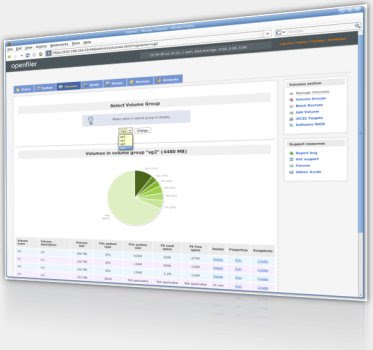
OPENFILER: Linux Based NAS SAN Open Source a fianco di Windows Server e Hyper-V

Recentemente mi è capitato di imbattermi in alcuni server a corto di spazio disco.
OPENFILER si è rivelata un ottima soluzione ISCSI, dalle prestazioni davvero interessanti anche in caso di raid software.
Sicuramente molto utile poter utilizzare una periferica ISCSI come se fosse un hard disk fisico collegato direttamente al vostro server, senza contare tutti gli altri benefici come ad esempio l'autenticazione LDAP oppure la possibiltà di creare snapshot del volume.
Ho avuto modo di fare qualche test anche con Hyper-V e Vmware, e devo dire di esserne rimasto davvero entusiasta. In un periodo di ristrettezze economiche come questo, un prodotto valido ed anche free è sicuramente da tenere in considerazione :)
Il supporto ISCSI è già incluso in tutti i sistemi operativi windows a partire da Windows Server 2003 R2, in caso contrario potremo scaricare ed installare Microsoft iSCSI Software Initiator dal sito Microsoft.

2 ott 2008

Microsoft Hyper-V Server 2008: disponibile per il download

Anche Hyper-V ha raggiunto lo stato di RTM, il prodotto è completamente free ed è possibile effettuarne il download dal link seguente:
http://www.microsoft.com/servers/hyper-v-server/how-to-get.mspx
Peccato non sia disponibile un tool GRATUITO per convertire una macchina fisica in virtuale come il concorrente vmware.
Info più dettagliate sul blog di Piergiorgio Malusardi (IT Pro Evangelist di Microsoft Italia):
http://blogs.technet.com/pgmalusardi/archive/2008/10/02/microsoft-hyper-v-server-2008-disponibile-per-il-download.aspx